Friday, January 3, 2014

How to message a friend who Blocked you on Facebook

Hello fans, Today we are sharing you a special trick that for attractive, How to message a friend who Blocked you on Facebook? Yes, you can send message to a person who had blocked you on Facebook  using this trick, Facebook gives their user best privacy policy, If some give you problem on Facebook then you can block them, After a block that friend or person can't see your latest and old update, Picture, and any related to your Facebook account its very useful feature for you. Using this you can secure your fb update from selecting people, But i am sharing with you something opposite about this,

Also Read - How To Open Multiple Facebook Account In Google Chrome


HHow to message a friend who Blocked you on Facebook image photo


How To Block a Person on on Facebook

To be continued I am wanna also tell them How to block a person on Facebook, Because many people don't about this, On my fb account, many people and friends was massaging me that a person harsing tell me how to remove that prom my Facebook activity, Like these type massages me always getting in my inbox finally i am sharing this method you can also read this a complete tutorial for both
How To Block and Unblock A Facebook Friend


How to message a friend who Blocked you on Facebook image photo

How to message a Facebook friend who Blocked you me


  • Its simplea simple trick Completing using by Email.

  • First, you must Login Your Facebook Account.

  • Now you also must login you Gmail Account.

  • Now Click on Compose Email Option.

  • Now Enter your Friends User name as Email.

  • Like this    username@facebook.com 

  • Now Type you Massage which you wanna send him.

  • Now Click on Send Button and It's Done.

Final Words

A few months before this method also working with yahoo mail but now its not working with yahoo mail, Now yahoo blocked this method, We test this only in gmail and its full tested working method with gmail. If you like this article, please give us a minute for saying thanks, If you think that its useful article then please share with your fans. For latest working Facebook Tips and Tricks Keep exploring our site, Please Like and share Thanks you. ..   ... .

How to See Recently Added Friends in Facebook 2014

See Recently Added Friends in Facebook for get all information of new guys very useful, If after add if we forget there name using this trick you can get recently added fans list in few clicks, Many friends asking us for this question so for this today i am sharing with you about Facebook activity information trick which is How to See Recently Added Friends in Facebook, There are many Tips and Tricks of this social site, Its a biggest social site in the word, People always trying to get something new on Facebook, rarely most people are trying to get something new trick, Actually a billion people daily using this social site, So they want know all type tips of this social site, We are always share something new on our blog, We are thinking that this secret tip you may also like and it will more useful for you. Lets try our simple trick for this, May be useful for you also work for you,

How to See Recently accepted Friends request in Facebook

When you get a friend request on your account, then you will accept it. After accept friend request you can't see that person which you recently added in your friend list, Are you think where is stored this information, Yes it will stored in a place, When you explore that you can get all your Facebook activity with recently  friends request accepted people also, All are stored in activity log. If you will explore your Log activity with right method, then you will get all information there.


You May Like How To View Facebook Search History

  • See Recently Added Friends on Facebook

  • First, you Must Login your Facebook Account.

  • Now go on your fb timeline and Click on Activity Log.
How to See Recently Added Friends in Facebook image picture

  • There you will see all activity Just Filter this clicking by More Button.

  • Now Watch left down side More option and Click for More.

How to See Recently Added Friends in Facebook image picture


  • Now explore your all Facebook Activity.

  • There you will see also Recently Added Friends.

  • Now it's done.

Visit For  - How To Disable Facebook Massage from Non friends


Final Words

This is simple tutorial, You can do this easily, By the way, if you have any problem on completing this trick please comment below, we will sure help you if we can, If  you think this is a useful article for you and your friends please share this article with your friends, You can also use LIKE and SEND button to support us. Thanks, keep visiting. . . .

How to comment on Mark Zuckerberg`s posts status Very Easy

Hello fans, Today we are sharing with you something knowledge about a Facebook and also a easy trick of this social site which is How to comment on Mark Zuckerberg`s posts, You know Facebook is a biggest social site,  You also know that its word wide social site, All countries user are connected to this social site like actor, actress, big companies CEO, political, singer, dancer, doctor, Primes and also many product companies are fully connected to this social site, We can directly comment and massage on any of these companies page or actor page or any product which connected to this social site, But we can't comments on Mark Zuckerberg`s status update easily. So many people don't know how to comment on  Mark Zuckerberg`s status update or why I am enabled to comment on Mark Zuckerberg`s status update, Just follow and do it.


How to comment on Mark Zuckerberg`s posts status image photo

You May Also Like - Facebook Shortcut Key For Google Chrome Firefox


Who is Mark Zuckerberg`s


If you are connected to Facebook then you must know about Mark Zuckerberg`s, Its most popular man in The word, This is an American Computer Programmer, He so popular for one of five co-founders of the social networking website Facebook.
Name            -   Mark Elliot Zuckerberg

Occupation    -   Chairman & CEO of Facebook, Inc.
Famous For   -   Co-founding Facebook in 2004
Religion         -  Jewish atheism
Birthday        -   May 14, 1984 (age 29)[1]
Nationality     -   American
Residence      -   California, US[2]
Alma mater    -   Harvard College 


Get Many Facebook Tips And Tricks

How to comment on Mark Zuckerberg`s posts 


If you wanna comment on Mark Zuckerberg`s then you must change your zoom setting, Without changing setting you can't do this. I wanna Tell you that Mark Zuckerberg has more than 19 million followers, No buddy can't send him friend request no one can't block him, Its friends will convert into followers, He is a great man, I also first time surprised that who is this man, which have the highest amount of follower, Lest if you wanna comments on Zuckerberge's image, status update than you first set your age 18+ year, If you are not adult means 18+ year than you can't do this.
 

How to comment on Mark Zuckerberg`s  Status image


  • First You Must Login Your Facebook Account.


  • Now Click on Right Corner Gear or Setting Button.


How to comment on Mark Zuckerberg`s posts image picture


  • Now scroll down and click on account Setting.


  • Now click on the Left side menu on Followers.

How to comment on Mark Zuckerberg`s posts image picture

  • Now click on Turn follow if this is not enabled.

  • Now Its done, you can do now.


Visit For - How To Hide Page name so easy.

Final word
This is a simple setting, but many people have not known about this, If you have any question about completing this trick, Please comment below, We also share screen shot using that you can do it easily, If you think that its useful article for you and your friends please share this article using SEND and LIKE button. Thanks for visiting.

Thursday, January 2, 2014

How to Open Multiple Facebook Account In Google Chrome

Hello fans, Today we are sharing with you special tips of Facebook which called How to Open Multiple Facebook Account In Google Chrome, There are many Facebook tips and tricks, People always trying to know something new tips of this social site, This is a also a very attractive tips of this social site, Using this you can use many Facebook accounts in same browser or in Google chrome easily, Its a simple and easy method, It no required any script or any supporting device for this.

Visit For How To see Hidden Facebook friends List


How to Open Multiple Facebook Account In Google Chrome  image

How to open two or many Facebook accounts on one computer


Yes using this you can open many fb accounts in one  computer, Actually, this trick fully completed by the browser, There are no need any extra setting in your computer or PC, You can also use more browser for open many fb accounts on the same computer, But using our trick you can do it in the same browser, Which is Google Chrome.

You May Like Guide For Use Facebook Without Internet

Open multiple Facebook accounts on your Google chrome


How to Open Multiple Facebook Account In Google Chrome  image


Every one knows that Google Chrome is most popular browser, high amount of internet user daily use this browser, So we also share this tip by Google Chrome. If you wanna Open many Facebook Account using Google Chrome than follow us.


  • First You Must Open Google Chrome.

  • Now Just Login your Facebook account.

  • Now Press CTRL+SHIFT+N

  • Than You Will see New Google Chrome Browser.

  • Just Go Facebook.com and Login to New Account.,

  • You can open many accounts using the Same Method.


Final Words

This is simple tutorial, This trick is fully tested ad its full working, If you have any question about this Facebook Tips and Tricks Please comment below, We will surely give you the best answer, If you like this article, please give us a minute to say thank, Please share this article with your friends, Keep visit our site for more tutorials on this social site.

How to see view hidden facebook friends list Very Easy

See view hidden Facebook friends is very useful trick if you wanna know your others friends list, Hello fans today we are sharing with you  a special and also attractive trick of Facebook which called how to view hidden Facebook friends list  or how to see your friends hidden friends list on Facebook, every one know that Facebook is a biggest social site, Its user coming form all around the word so its world wide social site, Always people searching something new on this social sites tricks, we also share many tips and tricks of Facebook, Fb give there user privacy policy but people always trying to know something new which can't provided by fb, Its happen by something special tips and tricks, And our site always sharing something new tips of fb, Then let's try our this useful trick for this social site and enjoy this.
For  More Help &  Tricks  Join Our  Big Group  -  Mahendratricks

How to Hide Your Facebook friends list

If you wanna that your friend will not see your friends list then you must set your friends list public to only me, When you will set public to only me than people enable to see your friends list. It's very simple. Just follow us and do it.


  • First, you must Login with Your Facebook Account.

  • Now Go on your Fb Time line.

  • Now Click on Friends Button.

How to see view hidden facebook friends list image picture photo

  • Now Click on manage and Edit Privacy.

  • Just Set Friend list Public to Only Me.

  • Now Its done.


You May Like - How To Hide Mutual Friends On Facebook

How to see your friends hidden friends list on Facebook


Yes, you can see any friends hidden friend list, You can do it By fb official find friends application, When you search on this application some friend of mutual than its showing there hidden friends, Just add any friends name and click on find friend then you will see they're all friends, I will share video tutorial also. Its a very simple method just follow us.

  • First you must login in Your account.


How to see view hidden facebook friends list image picture photo

  • Now click on mutual friend and add their friend's name.

  • Now just Press enter and wait for few movements.

  • After this you will get all friends.

  • Now it's done.

Best article on -  How To send Blank Massage and Blank Comment

Final words

We are always trying to share something new and working method of this social site, This method is fully working in all browsers and in all countries, If you have any question about this tutorial just Tel use by comment below, we will help you, If you like this article please like and share with your friends, Keep visit our site for more, Thanks for visit our blog.

How to Unblock a Facebook Friend Latest 2014 Tricks

How to Unblock a Facebook Friend tricks many need, So today we are sharing with you a simple and official method for How to Unblock a Facebook Friends, Facebook Blocking friends is a best feature of Facebook, Always we connect something new friends that is we very like, But some friend are not good for your privacy policy or you are not like there status update or there many post are spam or they send you fake massage, Bad comments on your status update, Bad or adult picture sharing people and like these quality friends or people which you don't like, Or you don't like there notification, If you must wanna hide there all activity from your time line or with you Facebook updates than you will Block that people, After some time if you wanna be friends, You can do this but you must need first unblock that peoples in your Facebook privacy setting.


You May Like How To Disable Massage from Non friends

How To Block a Friend on Facebook

If you will block a Facebook friend than fb will block their all activity with your account, Mean you will can't see there fb account, status update, They unable to massage you and they can't see your status, image and all related to your fb account, and many more like this, If you wanna  Block a 
Facebook friends Than follow some easy steps for this, 


Visit For How To Stop Tagging Permanently


  •  First, you go on that friend or person's timeline.


How to Unblock a Facebook Friend image picture photo


  •  Now click on Setting sign located with massage Button.

  •  Now Scroll down and Click on Report/Block.


  •  Just send Block Here Friend name.


  •  Now It's Done.

How to Unblock a Friend on Facebook

  •  If you wanna get blocked friend again, It so just follow us.

  •  Now Click on Setting Option Like Below Image and Scroll Down.


How to Unblock a Facebook Friend image picture photo

 
  •  Now click on Privacy setting, Like below image.

  •  Now Click on Blocking in left side red small Icon.


How to Unblock a Facebook Friend image picture photo

  •  Then you will find blocked People just Click on Unblock.


  • Now it's done.


Best Article For -   How To View and Delete Facebook Search History

Final words

 
This is simple method, but many people don't know about this, We also share some supporting images for better understand, If  you any problem for complete this tutorial please comment below, We will surely help you. If you like this article, please comment below to say thanks and share with your friends, Keep visiting our blog for the latest tips and tricks.

Wednesday, January 1, 2014

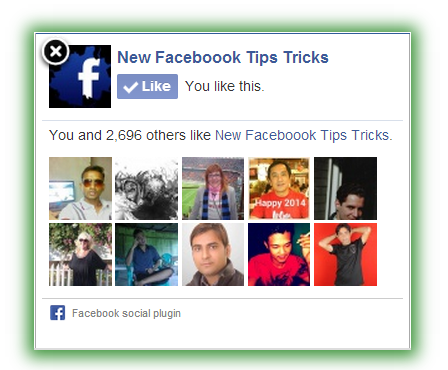
New Facebook Page Promoter Popup Like Box

New Facebook Page Promoter Popup Like Box is latest product of net, Its fast loading and working in all screen, Its most useful is that its not affect site speed, If you will try any most others they may make site heavy, and site will go down due to slow loading, But don't worry Today we are sharing with you a new tutorial for New Facebook Page Promoter Popup Like Box,  Facebook is a biggest social site a billion user every day using this social site, Means using fb we can get a hug traffic collection form this social site, Its very helpful for your site traffic and Alexa ranking,  Using this we can increase our Facebook page like which more important for your site popularity, When a visitor came on you site than he first see this Facebook Page Promoter Popup Like Box, They will also connected with you page and also get more new post by page. 

You May Like - Add Sliding Floating Facebook Like A Box In Blogger

New Facebook Page Promoter Popup Like Box image photo

  • It's a new Latest Page Promoter Popup Like Box.
  • Also more SEO friendly and faster from old.
  • People will connect to your page update.
  • Easy trick for increase page like faster.

Best Tutorial For Add Facebook Activity Feed Plugin To Blogger

New Facebook Page Promoter Popup Like Box with Timer

There are many types Facebook popup like box, All are having something different styles, Some new popup like the box had an attractive feature, Using this we can customize their time to appear and disappear, it's also faster loading and SEO friendly, If test another one you will know that they get more time to load, So that is not user friendly, it's also affecting our blog and website traffic, So you must use this latest new New Facebook Page Promoter Popup Like Box with timer.

Add New Facebook Page Promoter Popup Like Box in Blogger


  • -   Now Open Your Desire Blogger.

  •  -  Now Click on Option  "Layout".

  • -   Now simply Click "Add A Gadget" .

  •  -   Now Scroll To "HTML-JAVASCRIPT"

  •  -   Click "+" Icon To Add widget.

  •  -   Now Copy The Below Code And Paste It To Their.

  •  -   Leave The Title Empty.

  •  -   Click on  Save, Now You Are Done.

Just Use Below Code For Widget


Customize 


  • Replace  newfaceboooktipstricks with Your Facebook Page Name.

  • Just Change For Display Time  15 Second to Your Required Time.

Visit For - Add Facebook Like Button Below Post Title.

Facebook Page Promoter Popup Like Box Advantage

If you will use this Page promoter like box then you will get more likes, Its fast loading and work in most screens, Also compatible with all templates and also all platforms, No more any extra coding required to just replace the name and ready,

Final words
 
This is a latest and updated code for Facebook Page Promoter Popup Like Box with timer, You can change display time 15 second to any time which you will require, If you have any question about this article, please comment below, If you think that this article useful for you and your friends than Please like and share this article with your friends.